Day to day
Answer questions
The Questions inbox is where you pick up what your assistant couldn't answer. Assign a question, draft a reply with AI, and send it. The visitor gets your answer by email, and it's saved to your knowledge, so your assistant can answer the next person itself.
Step by step
Step 1
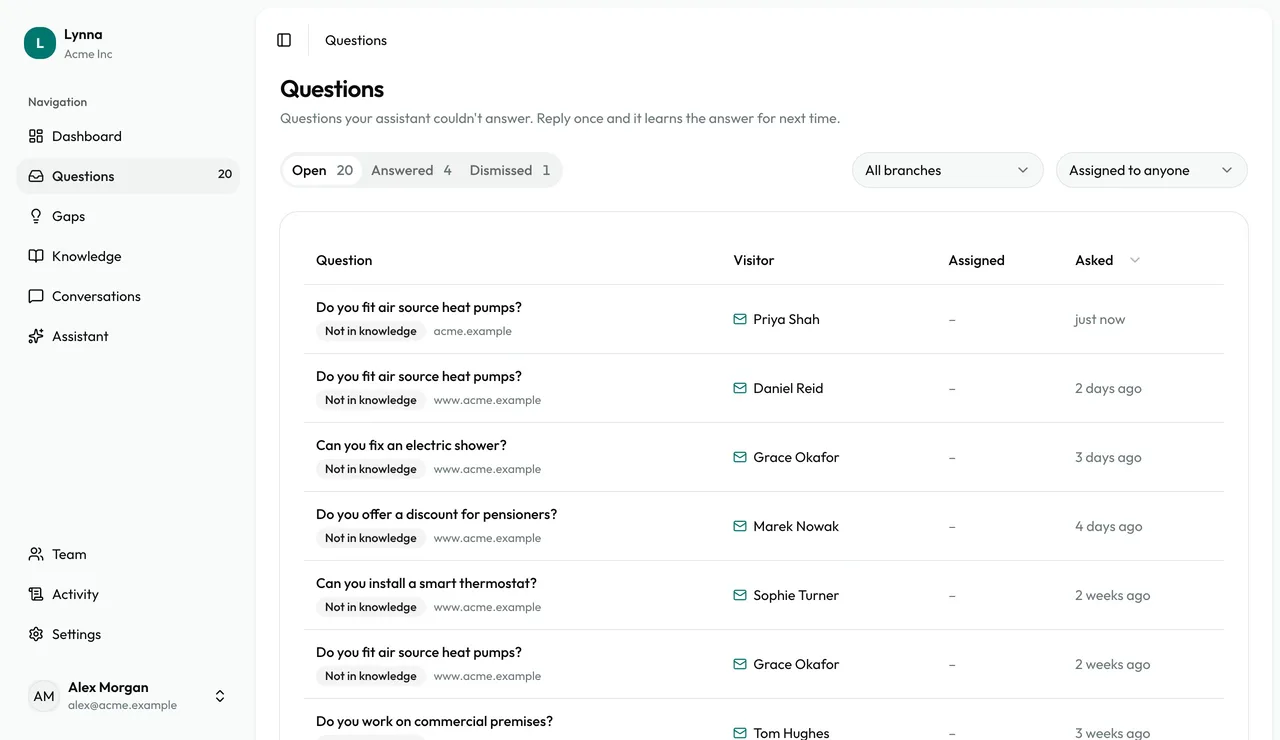
Open your inbox
Questions shows Open, Answered and Dismissed tabs. The sidebar shows how many are waiting.
Step 2
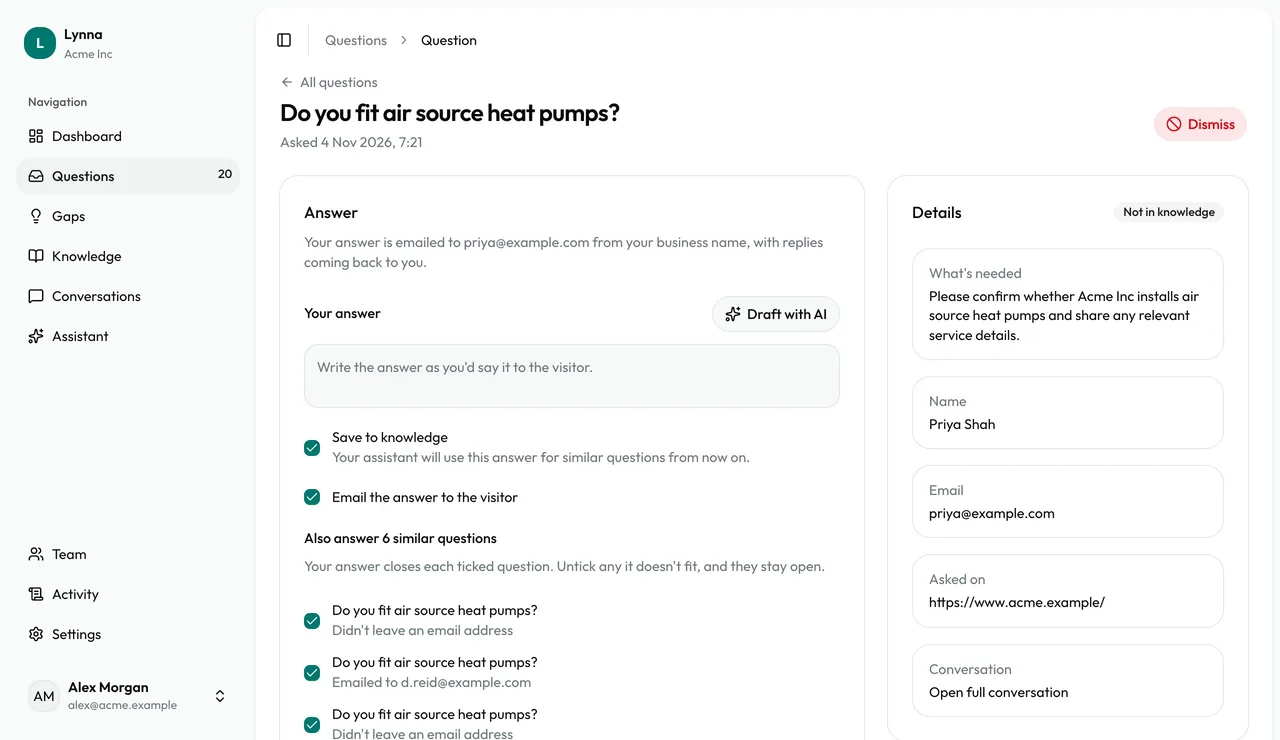
Read what came in
Each row shows the question, why it came to you, who asked and who it's assigned to.
Step 3
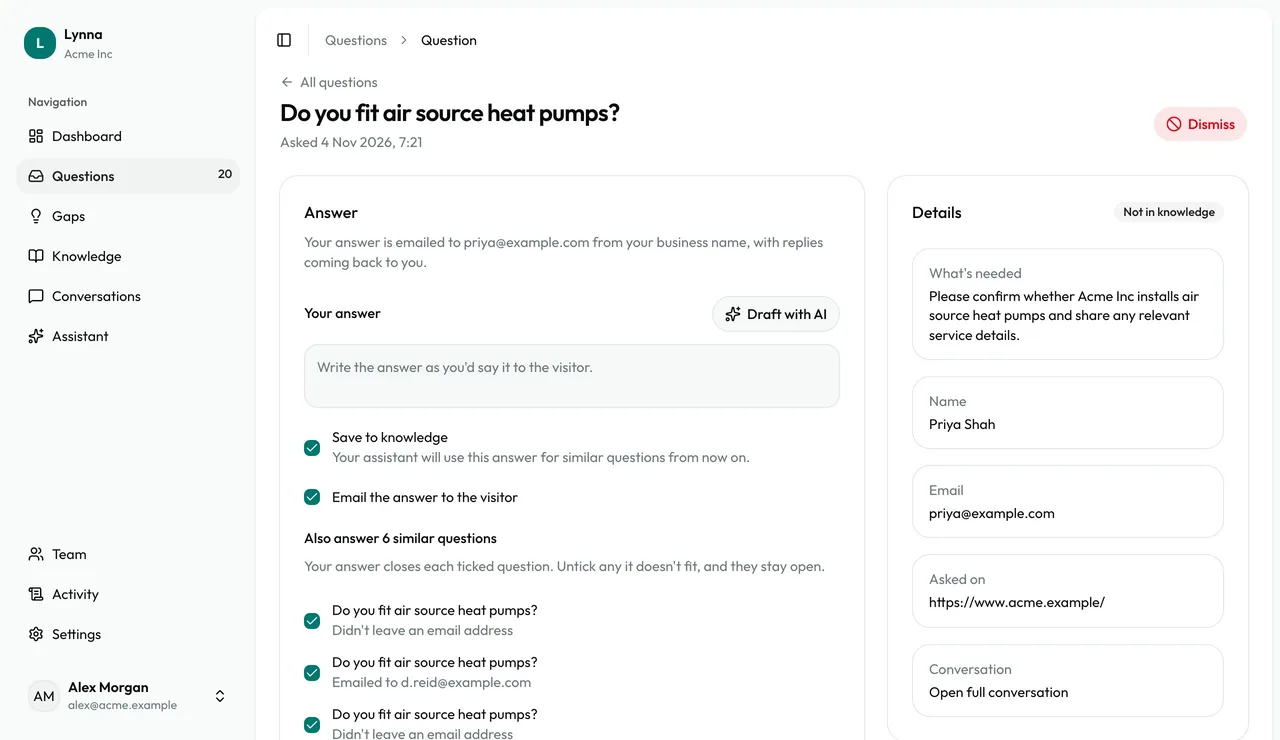
Open a question
See the visitor's details and the whole conversation.
Step 4
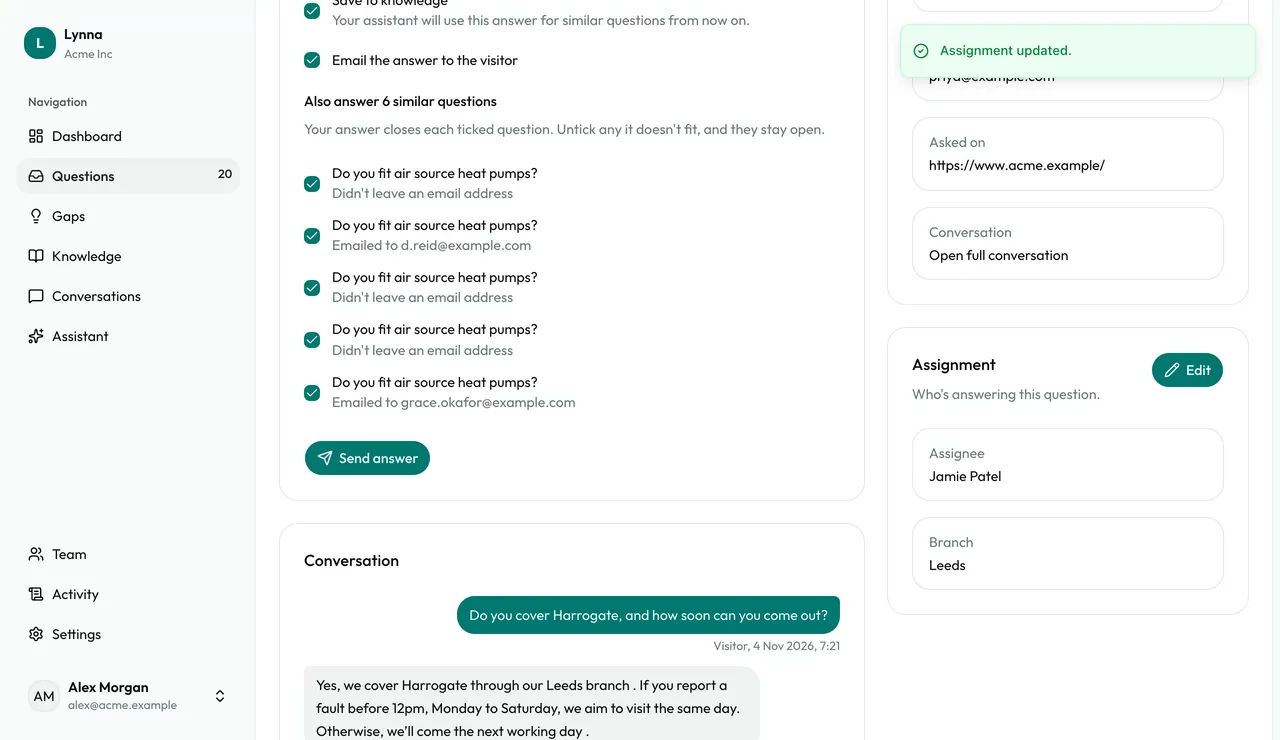
Assign it
Under Assignment, choose Edit and pick a person or branch. They get an email.
Step 5
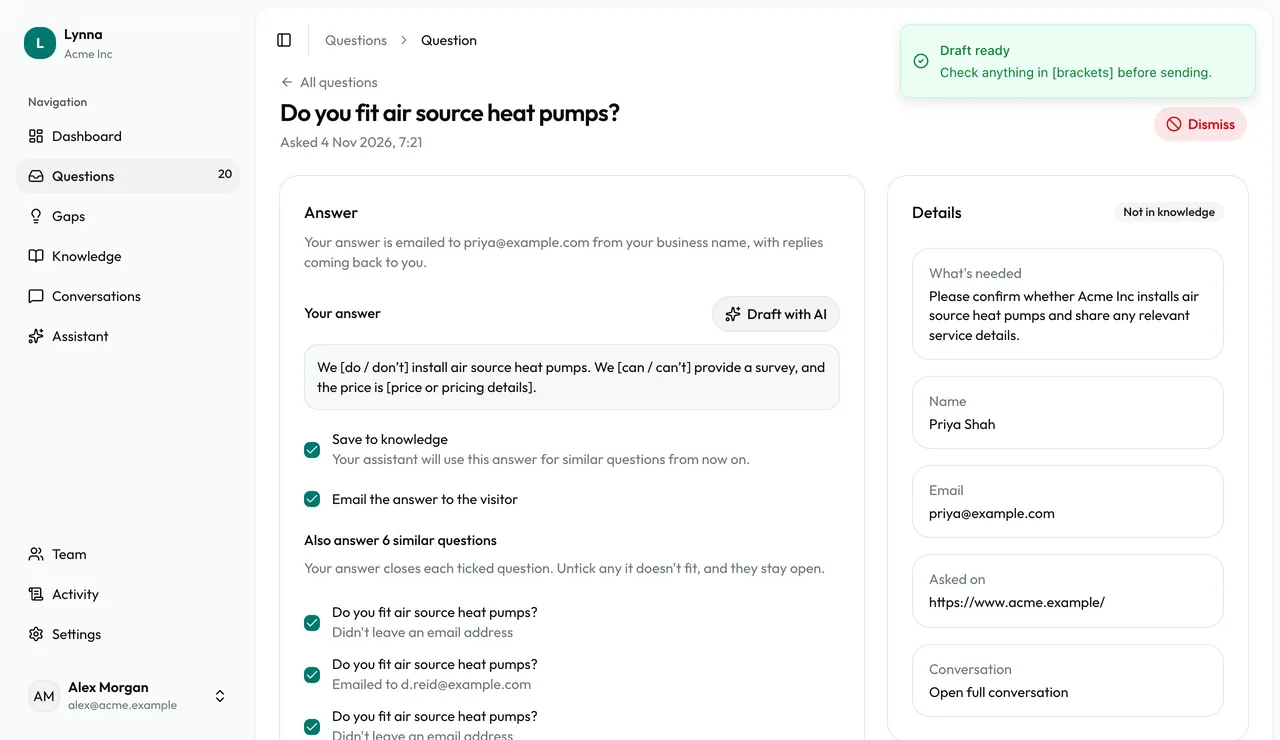
Draft with AI
Choose Draft with AI to start from your knowledge. Anything it doesn't cover is left in square brackets, and you can't send until those are filled in or removed.
Step 6
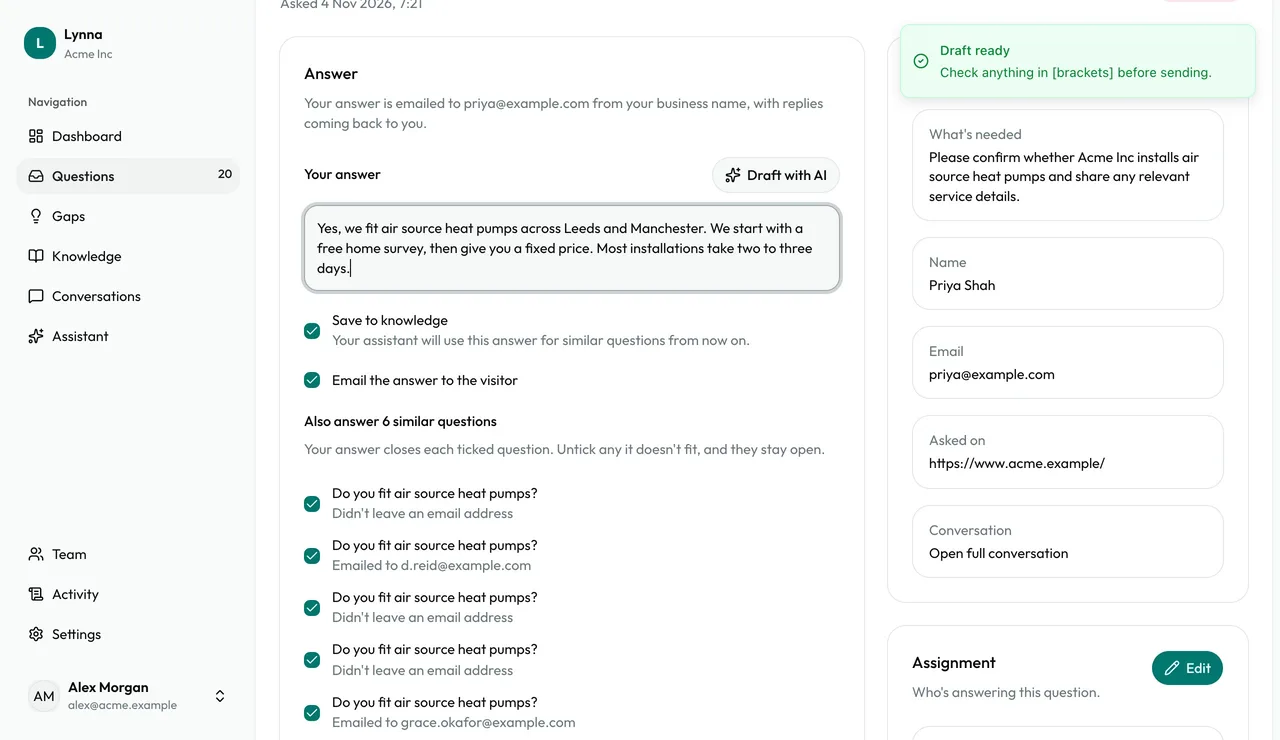
Cover everyone who asked
If other visitors asked the same thing, they're listed and ticked. Untick any your answer doesn't fit, and they stay open.
Step 7
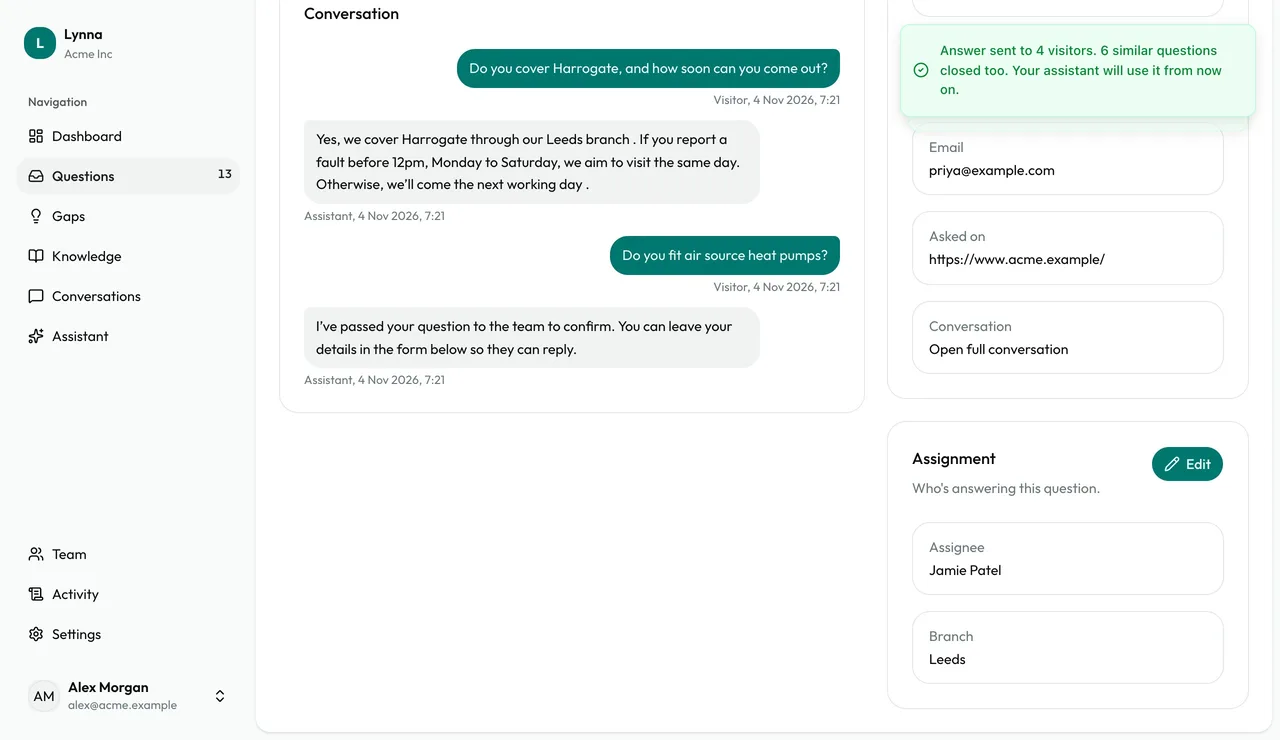
Send your answer
Save to knowledge and Email the answer to the visitor are ticked for you. Choose Send answer. Everyone ticked who left their email gets it too.
Step 8
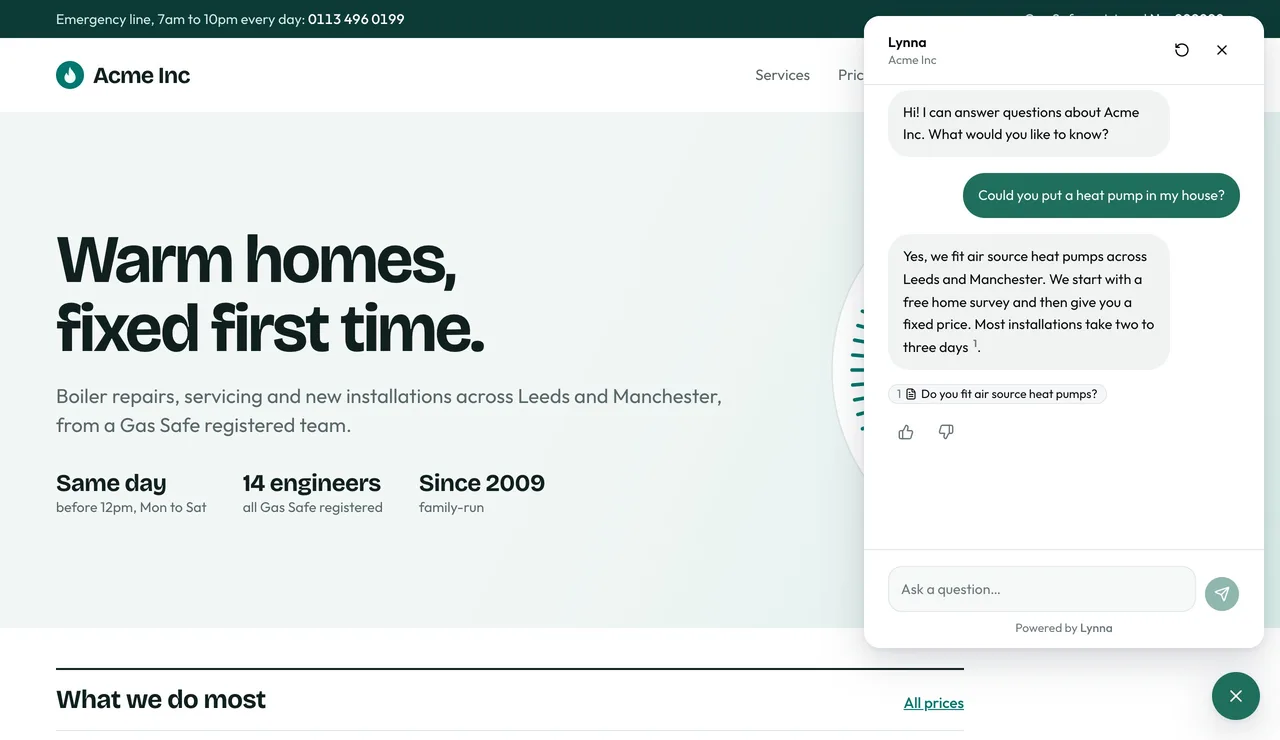
Your assistant knows it now
The next visitor who asks, in any wording, gets your answer straight away.
- Spam or not relevant? Choose Dismiss. Dismissed questions stay out of your gaps, and you can reopen them.
- Questions with no contact details still appear, so you can answer them and teach your assistant.
Next: Close knowledge gaps
Next guide