Manage your business
Customise your assistant
Make the assistant feel like part of your business. Change how it introduces itself, what it suggests, and how it looks on your website, then see the result in the live preview. Only owners can change these settings.
Step by step
Step 1
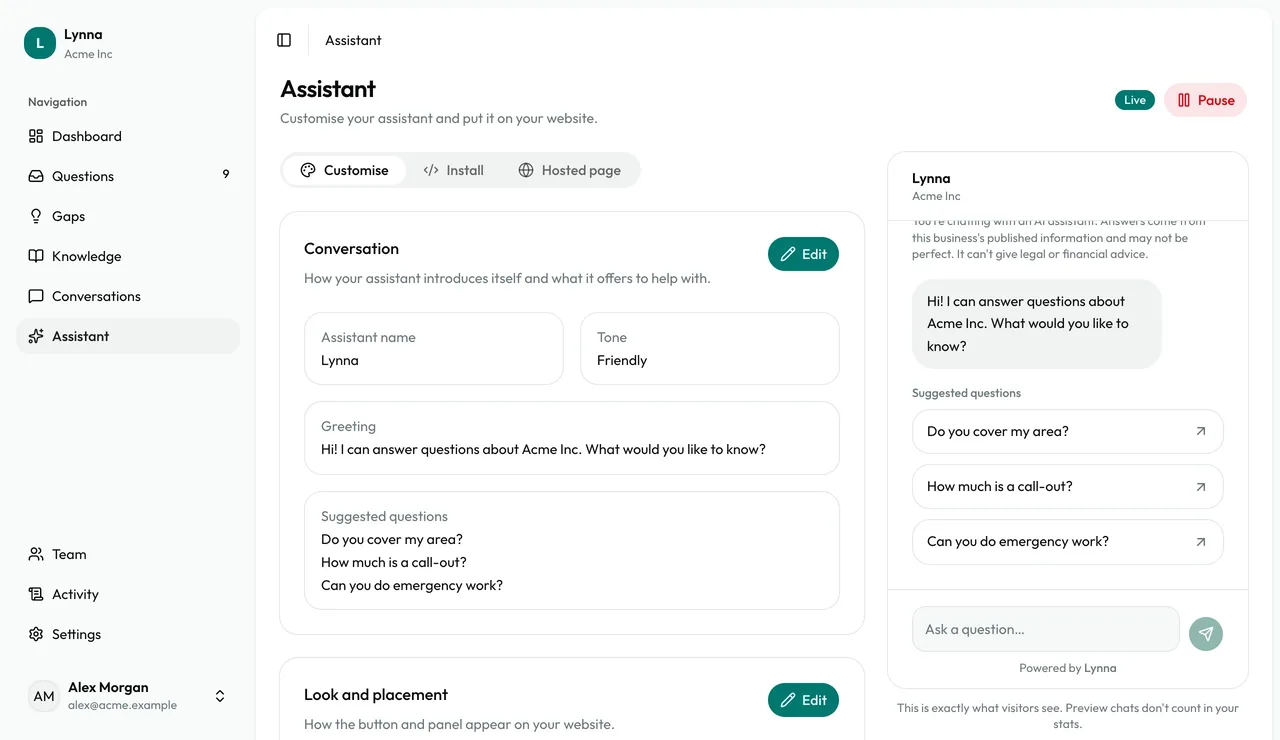
Open the Assistant page
Customise shows your settings, with a live preview alongside.
Step 2
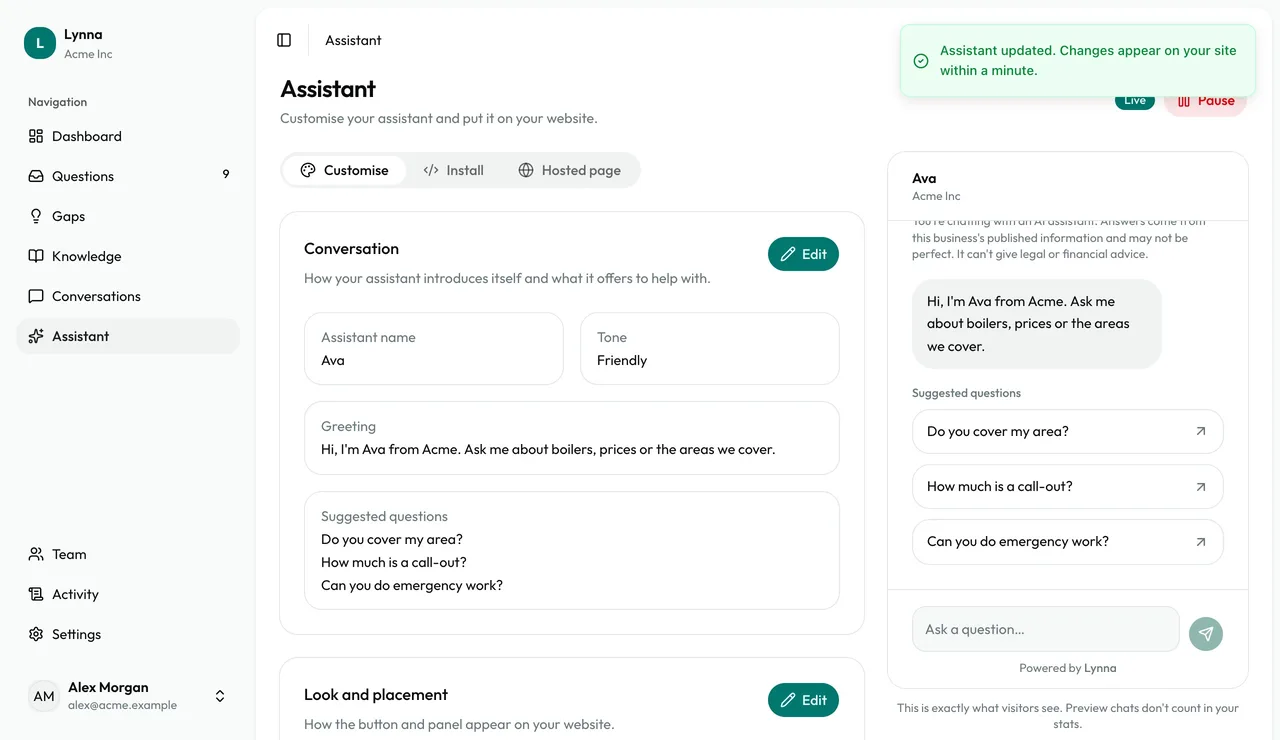
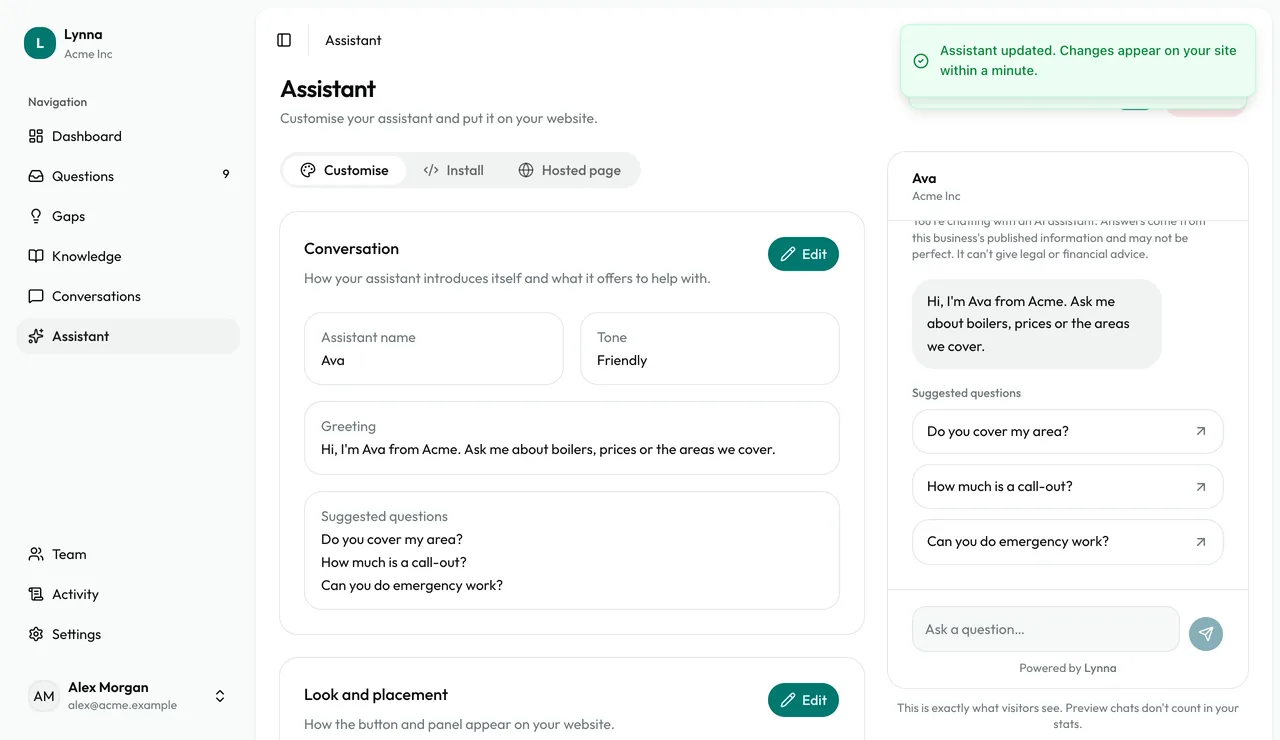
Set its voice
Under Conversation, choose Edit to change its name, tone, greeting and suggested questions.
Step 3
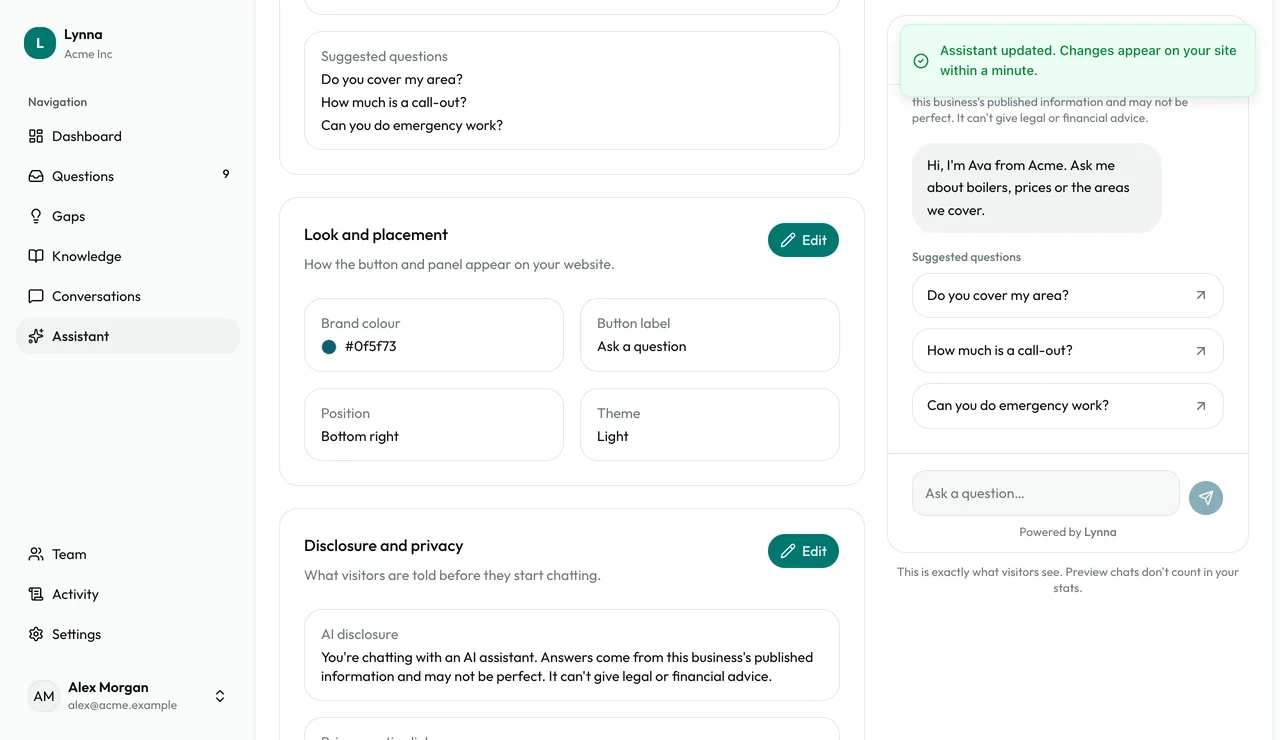
Match your brand
Under Look and placement, choose Edit to change the colour, button label, position and theme.
Step 4
Check your disclosure
Visitors are told they're chatting with an AI. Edit the wording and add a link to your privacy notice.
Step 5
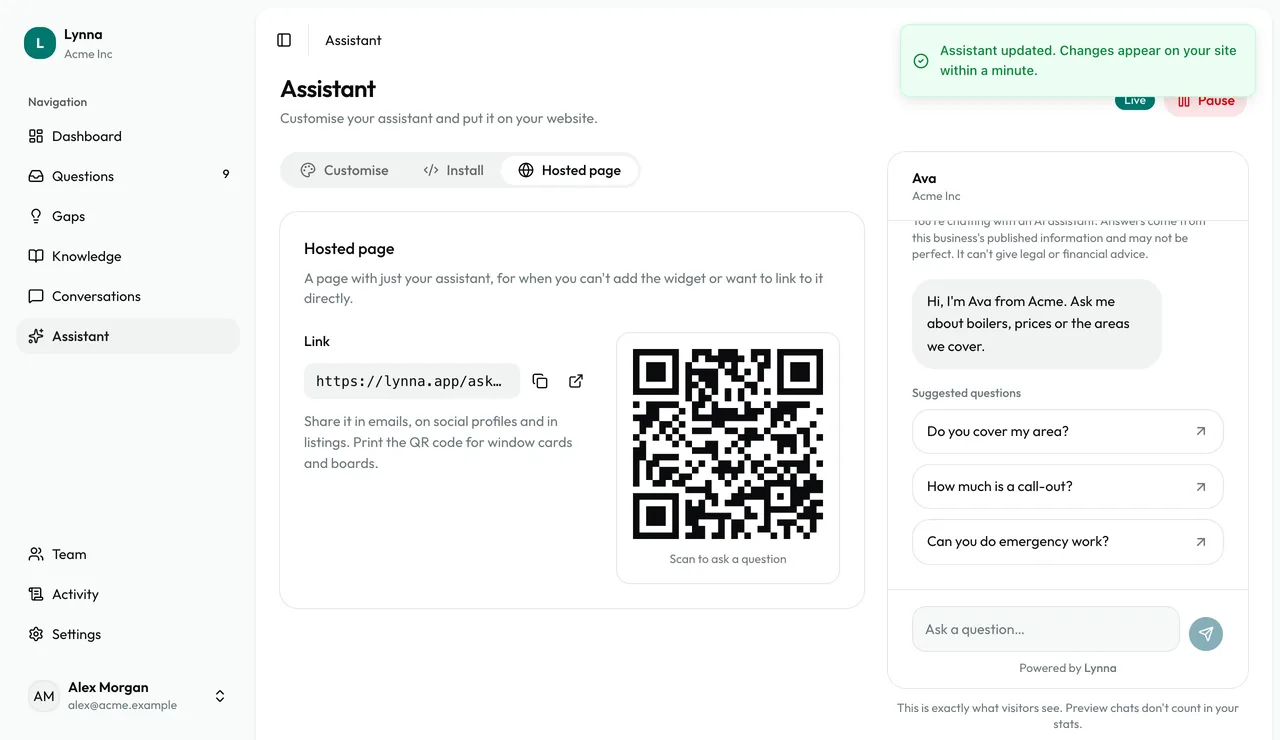
Find your install details
The Install tab has your code and allowed websites. Hosted page has your link and QR code.
Step 6
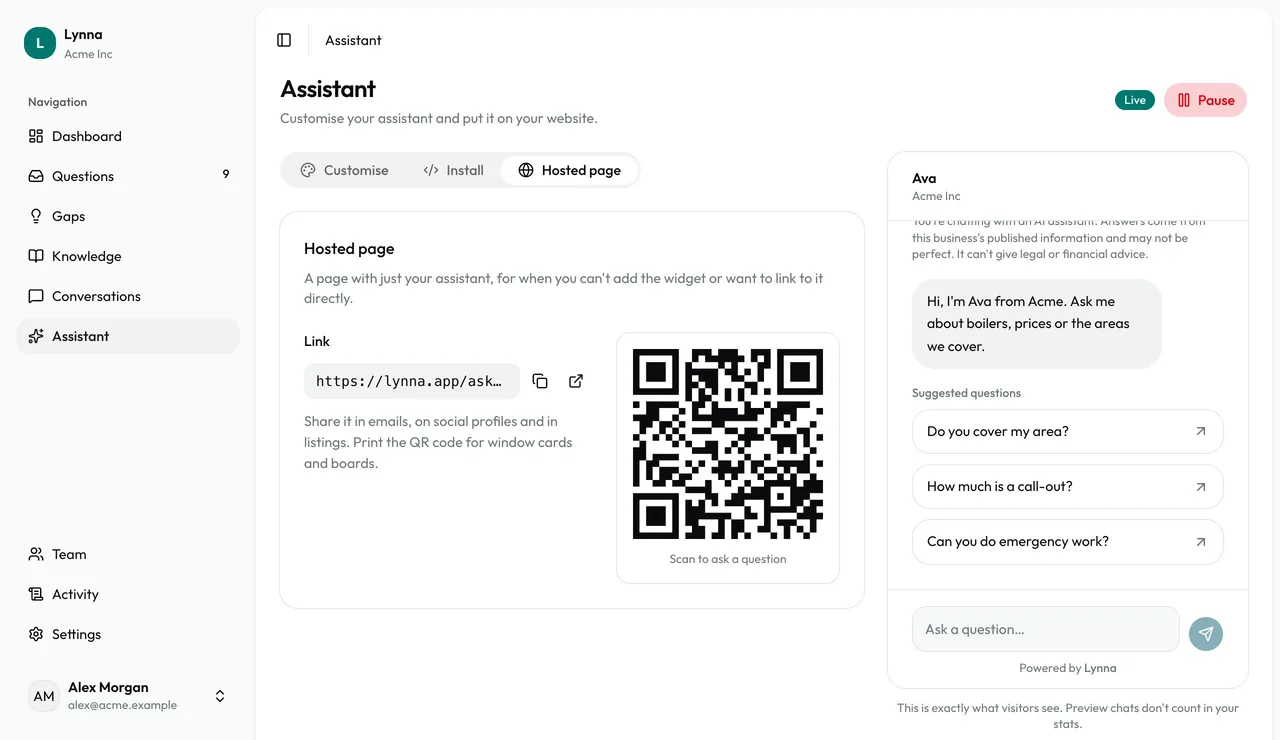
Pause if you need to
Pause takes the assistant off your site. Bring it back whenever you're ready.
Step 7
See it live
Saved changes appear on your website within a minute.
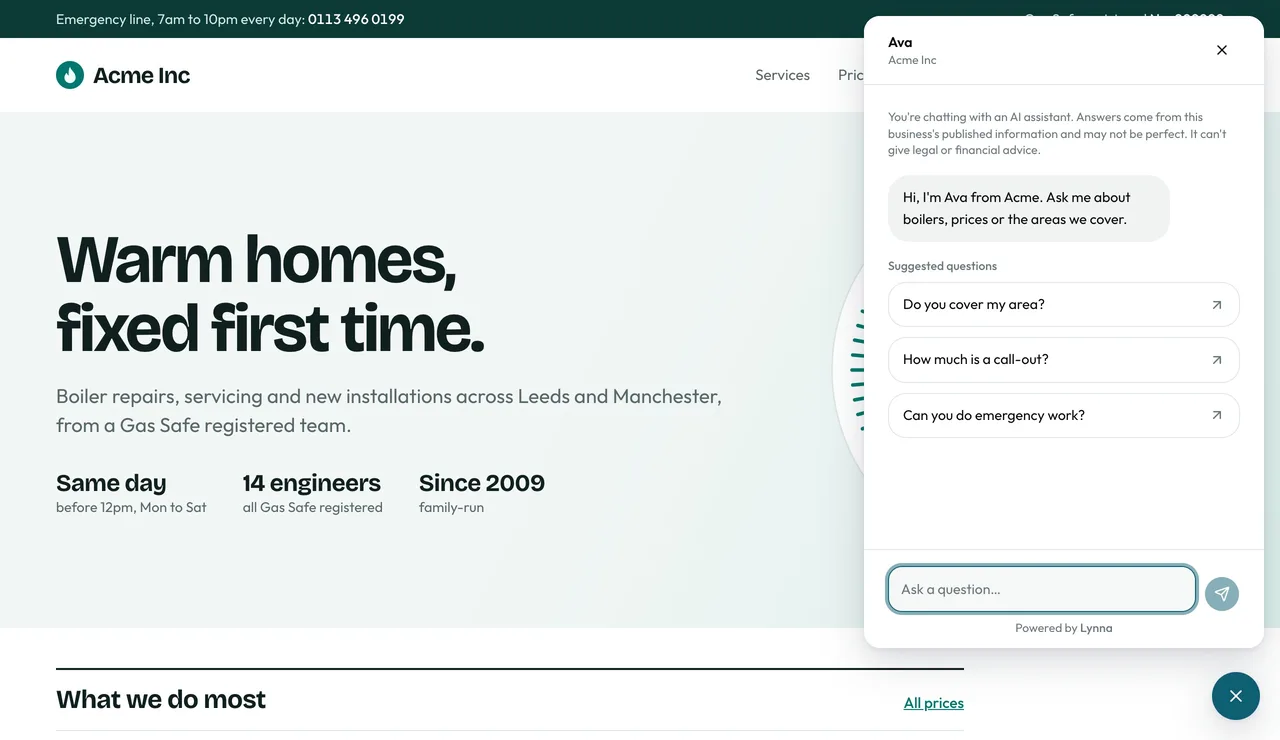
- Every chat shows a small Powered by Lynna link, on every plan.
Next: Add your team
Next guide