Get started
Go live
There are two ways to put your assistant in front of visitors. Paste one line of code into your website, or share your hosted page, which needs no website at all. If someone else looks after your site, Lynna can email them everything they need.
Step by step
Step 1
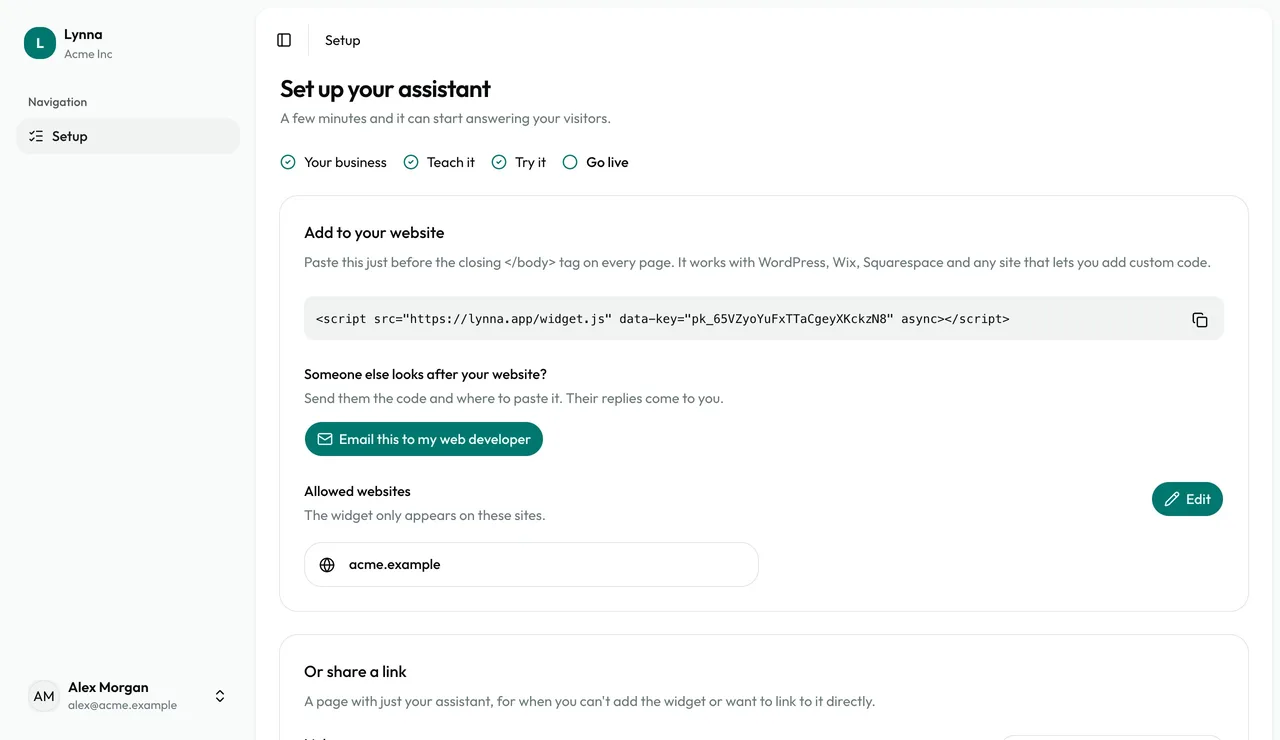
Choose how to go live
The Go live step shows both options. You can use either, or both.
Step 2
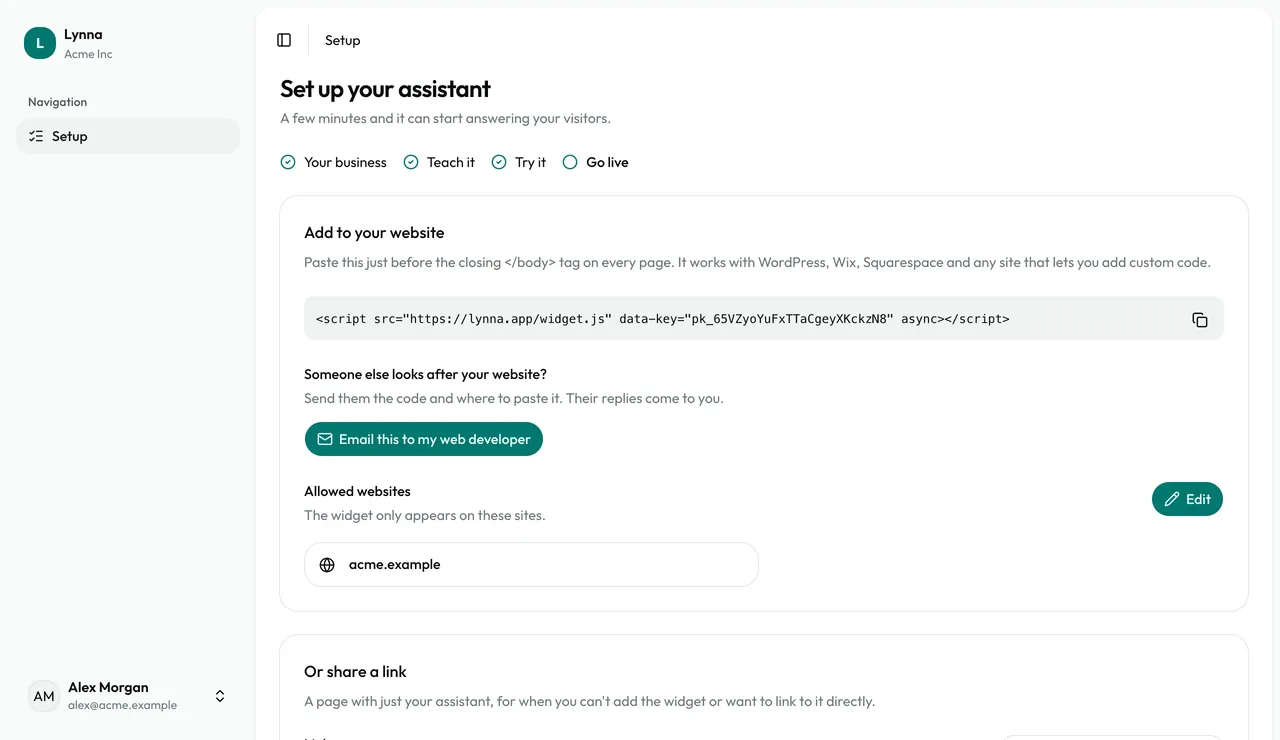
Add the code to your website
Copy the line of code and paste it just before the closing body tag on every page. It works with WordPress, Wix, Squarespace and any site that lets you add custom code.
Step 3
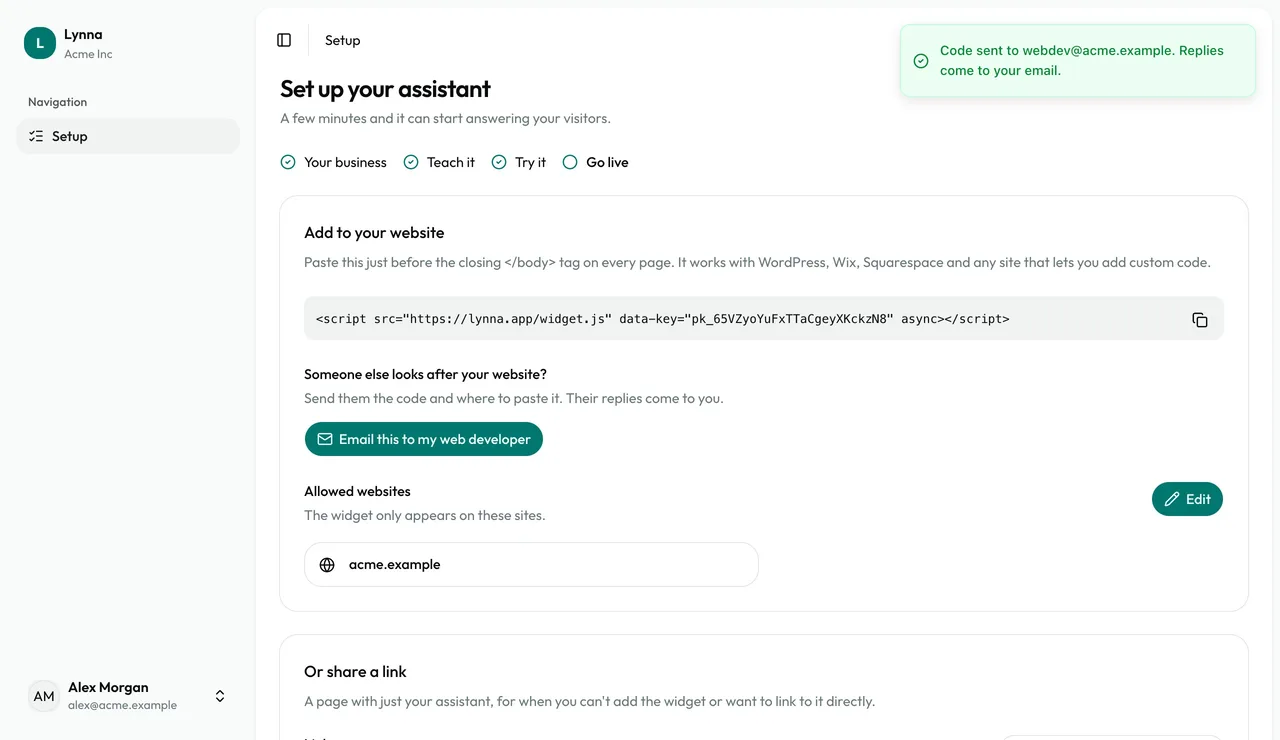
Or email your web developer
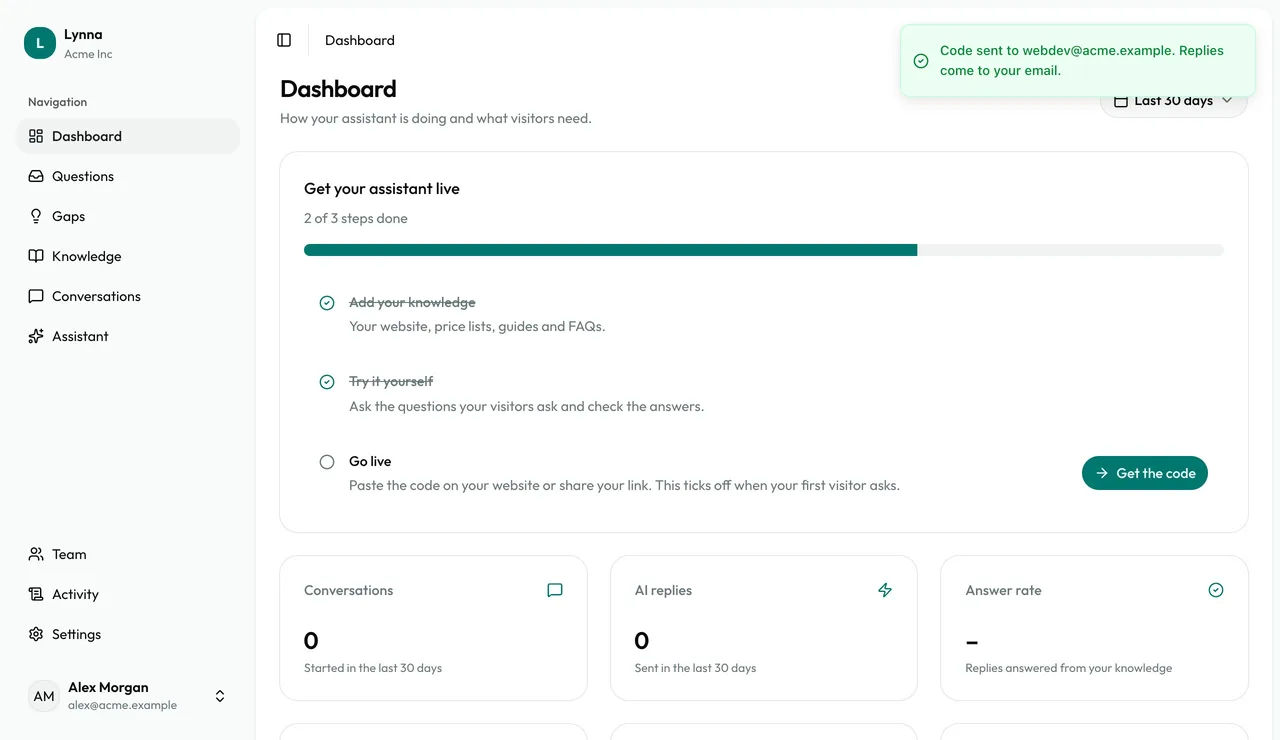
Choose Email this to my web developer and enter their address. They get the code and where to paste it, and their replies come to you.
Step 4
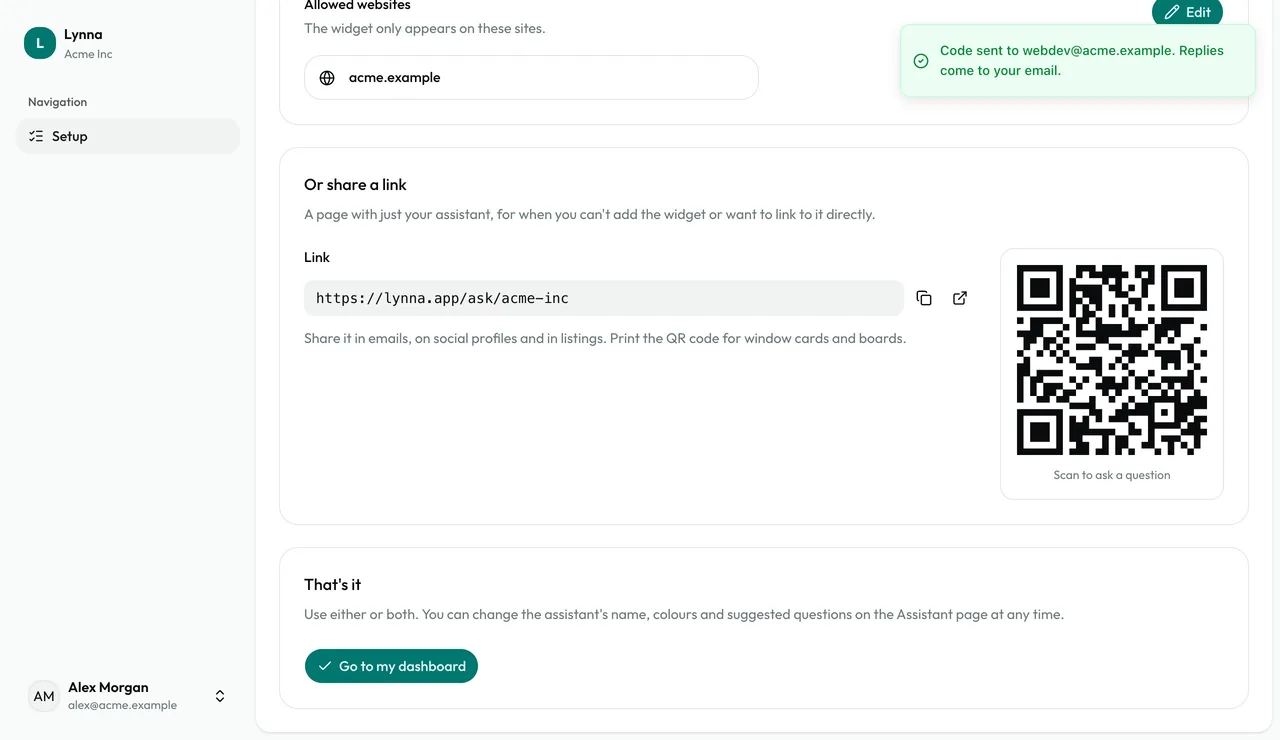
Share your hosted page
Copy your link for emails, social profiles and listings, or print the QR code for window cards and boards.
Step 5
Finish setup
Choose Go to my dashboard. The checklist there ticks off Go live when your first real visitor asks a question.
- The widget only appears on your allowed websites. Add more on the Assistant page, under Install.
Next: What your visitors see
Next guide