Get started
What your visitors see
See your assistant through a visitor's eyes. The chat opens beside the page without covering it, tells people they're talking to an AI, and answers with sources. If the answer isn't in your knowledge, it says so and takes their details, so no question is lost.
Step by step
Step 1
The button
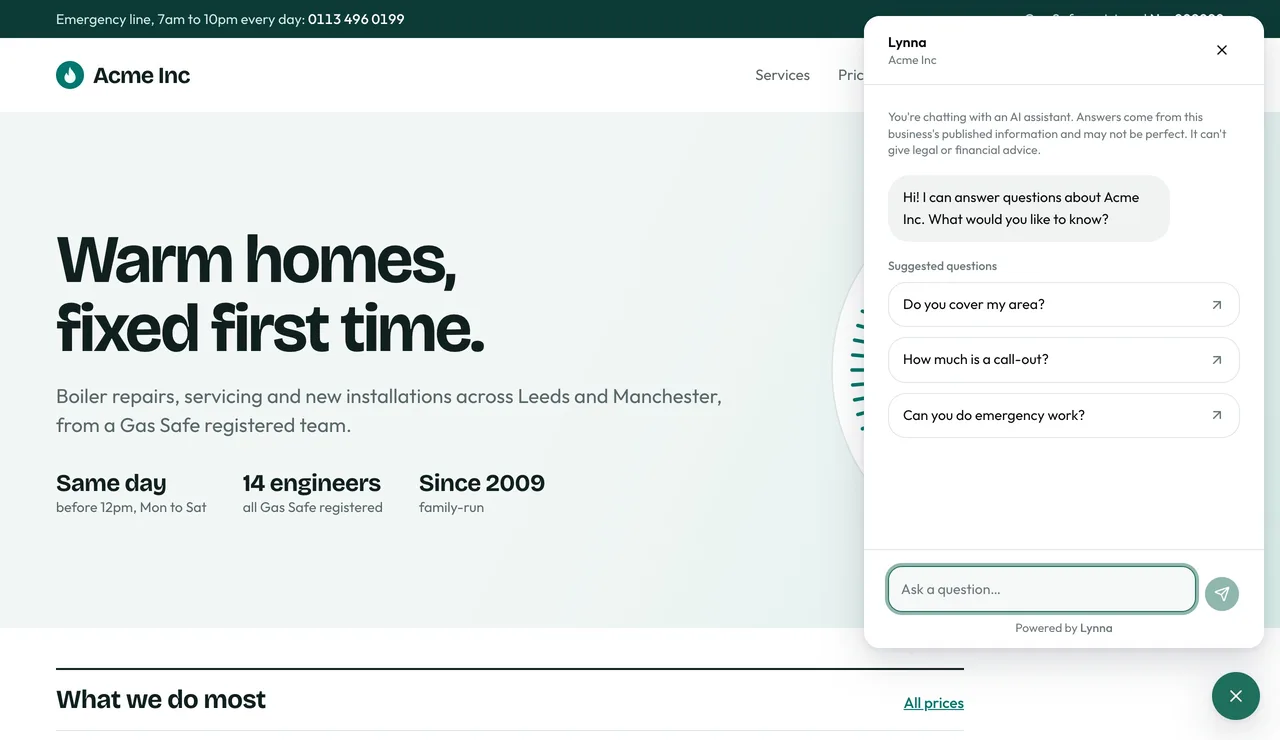
A small button sits in the corner of your website. You choose its label, colour and side.
Step 2
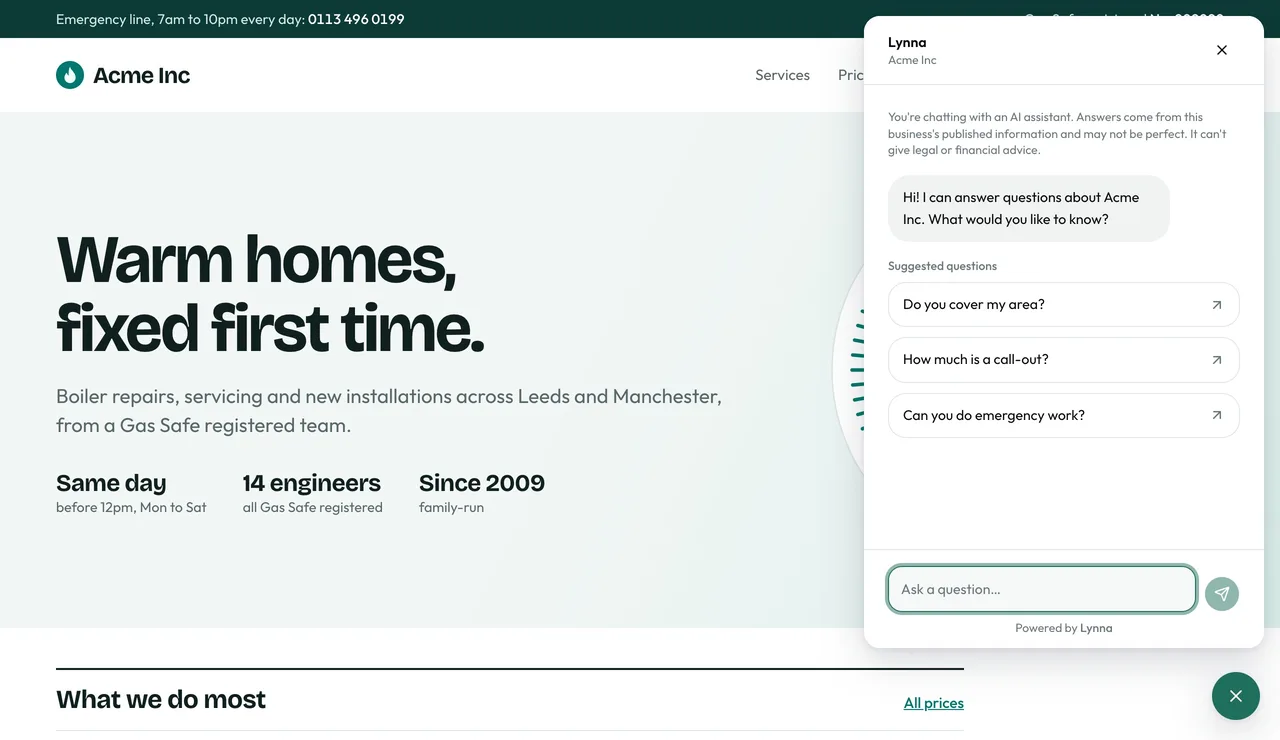
The chat panel
It opens beside the page, so visitors can keep browsing while they ask.
Step 3
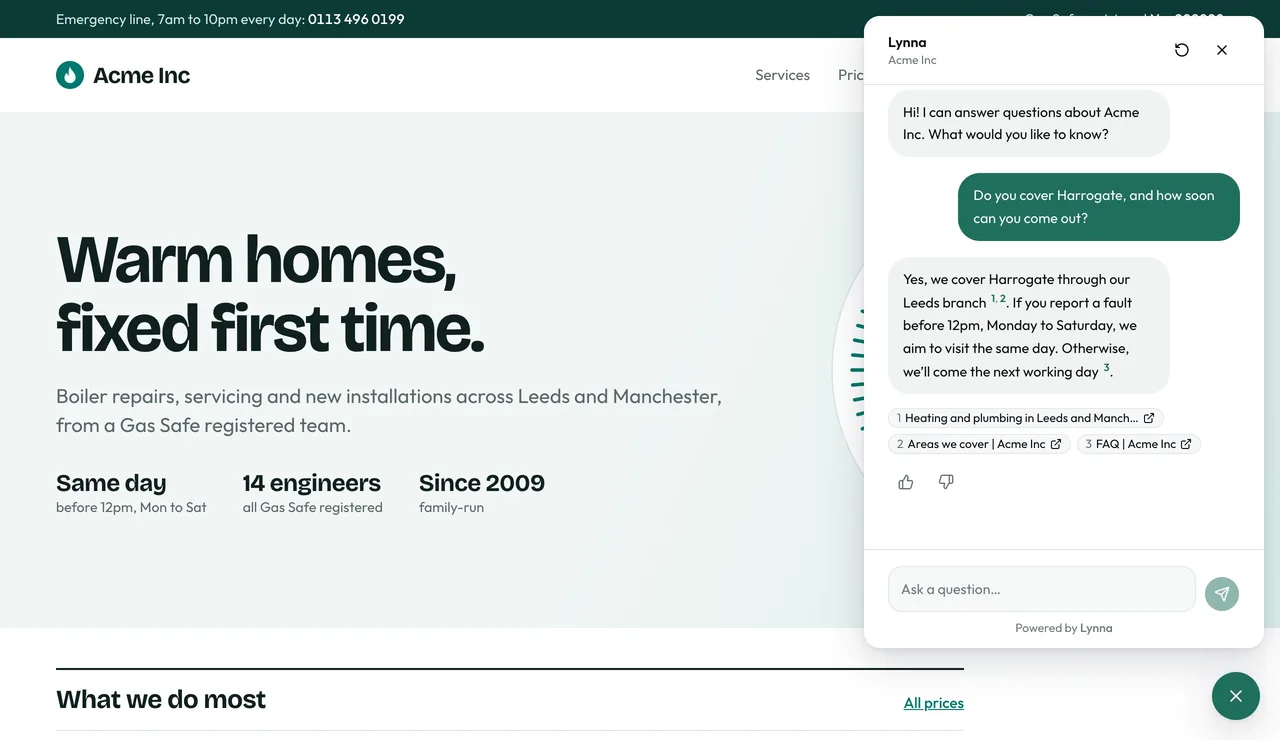
Answers with sources
Visitors are told they're chatting with an AI. Answers link to the page or document they came from.
Step 4
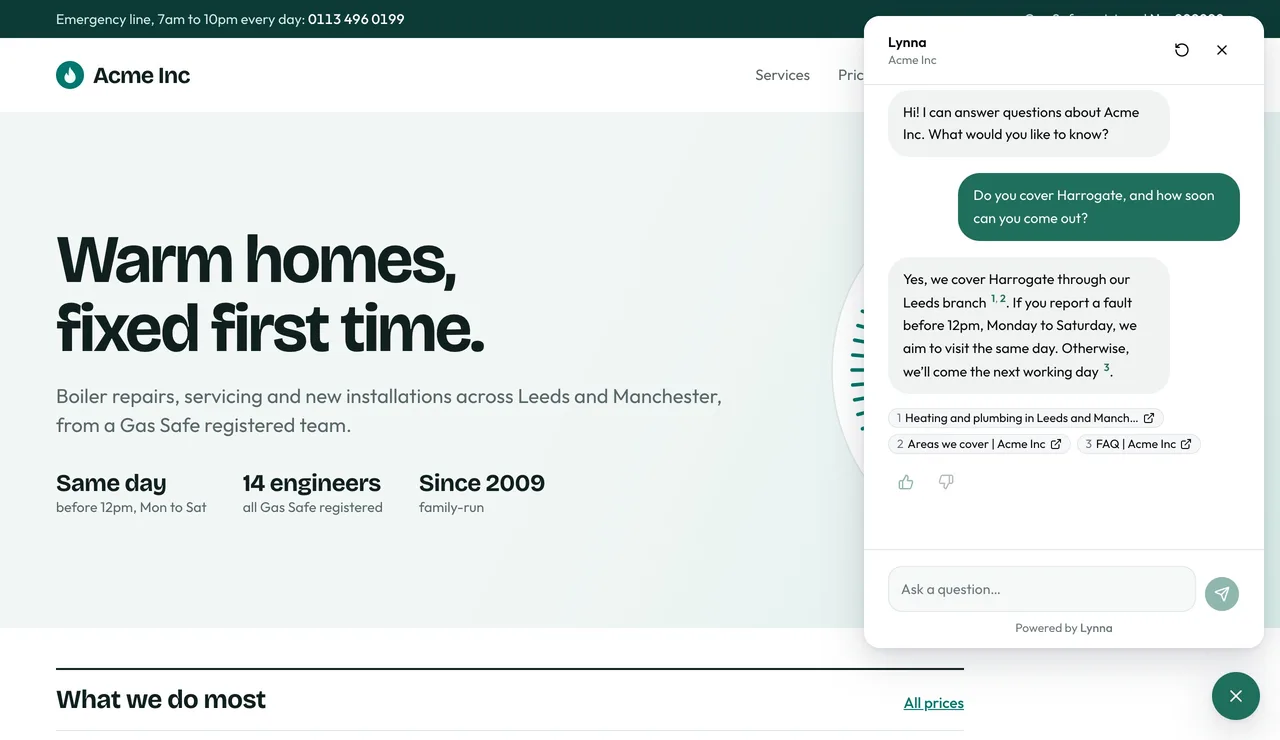
Ratings
Visitors can give each answer a thumbs up or down. A thumbs down sends the question to your team.
Step 5
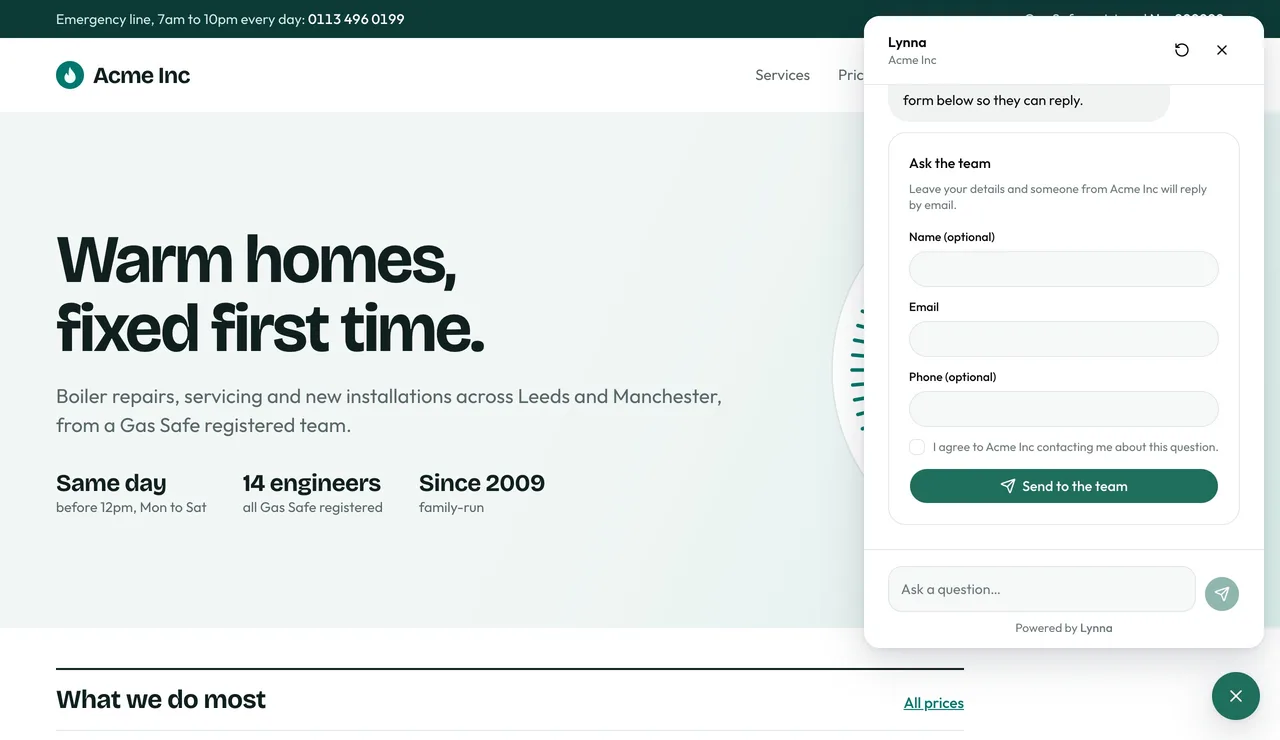
When it doesn't know
It never makes an answer up. It says so and offers to pass the question on.
Step 6
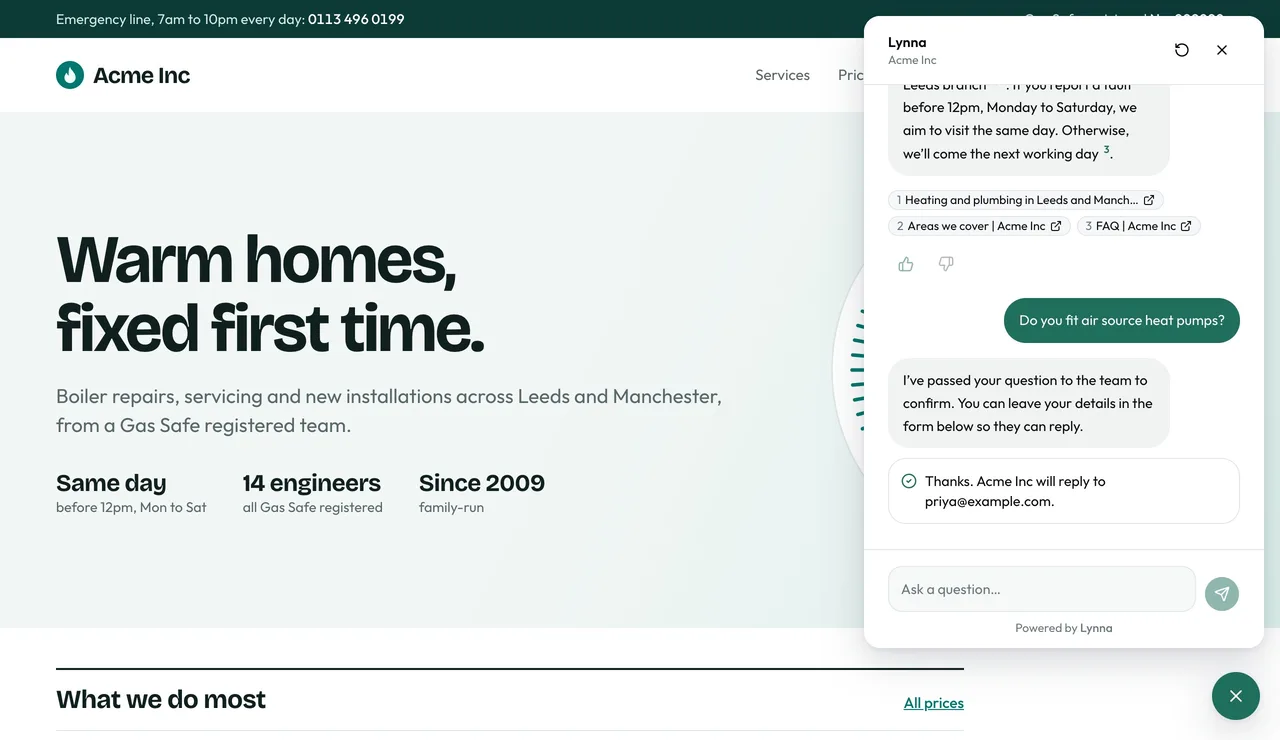
Passing it to your team
The visitor leaves their email and agrees to be contacted. The question appears in your Questions inbox.
Step 7
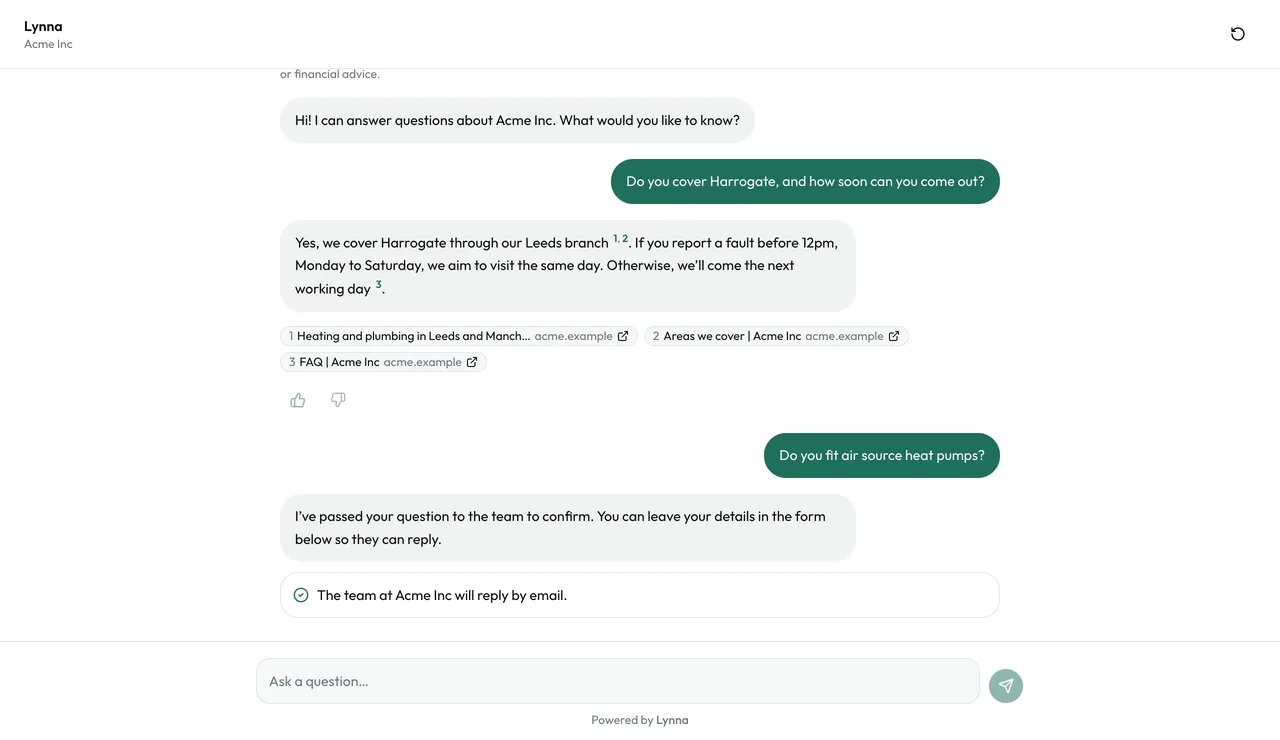
The hosted page
The same assistant on its own page, for sharing by link or QR code.
- Lynna won't give legal, medical or financial advice. Those questions go to your team.
- Conversations carry on for 24 hours in the same browser.
Next: Answer questions
Next guide